Huawei Google Play Store: How microG Sign-In Works
Installing a Google app on a Huawei device is only half the job. The moment that usually causes confusion is sign-in. You open YouTube, tap Sign in, and instead of seeing the normal Google login immediately, the phone sends you to microG Services. That is expected in the setup described by Huawei.
Install the Google app from AppGallery first
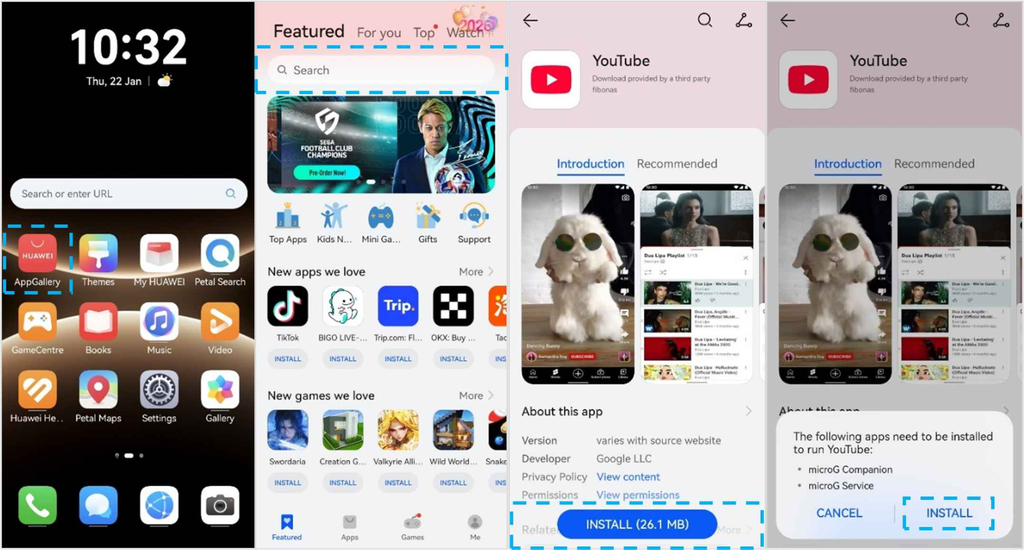
Open AppGallery and search for YouTube. Tap Get, install the app, and wait for the prompt telling you that extra apps are needed to run it. Tap Install.
The phone then installs microG Companion and microG Service automatically. You do not have to search for those components separately. They arrive as part of the setup because the Google app needs them in order to run and connect to your account.
Why the sign-in screen looks different
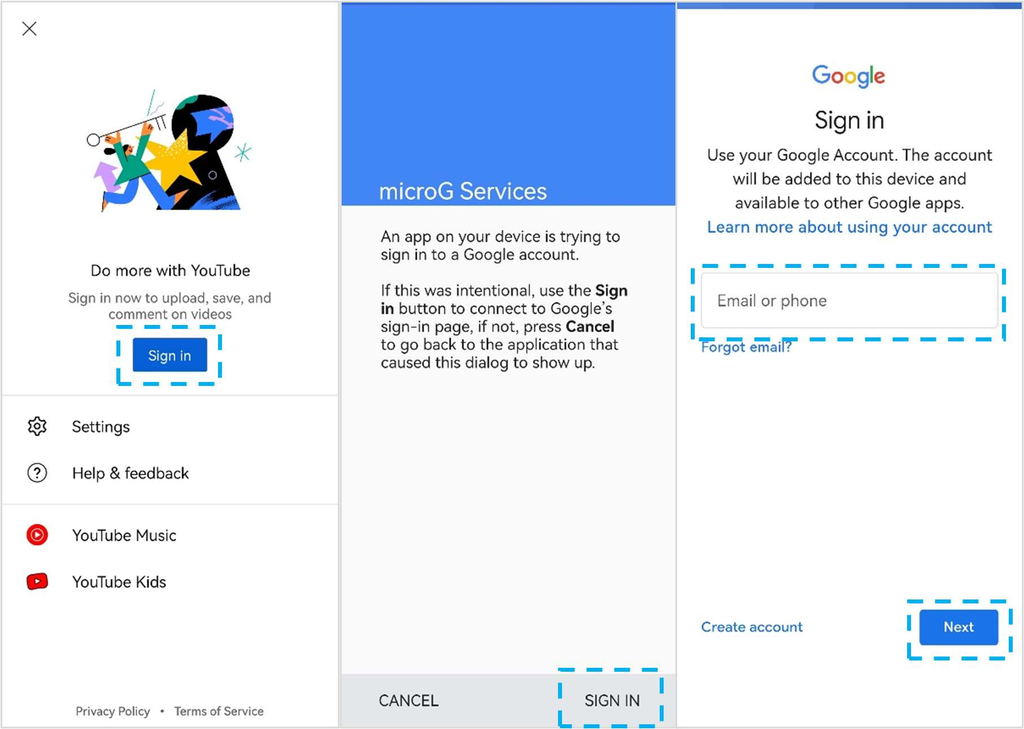
After YouTube opens, tap Sign in. Instead of signing in immediately, you are redirected to microG Services. Tap SIGN IN again. Only then does the normal Google sign-in interface appear.
Enter your Google account details and continue as usual. For anyone searching huawei google play store, this extra page can look like something has gone wrong, but in the Huawei guide it is a normal part of the process.
What microG is doing
Huawei describes microG as the component that enables secure Google sign-in and background services. In practical terms, that is why YouTube can move from the app to microG Services and then to the Google account screen.
This also explains why Huawei tells users not to uninstall microG Companion or microG Service. Removing them after sign-in can affect the apps that depend on those background services.
What happens when an app is missing
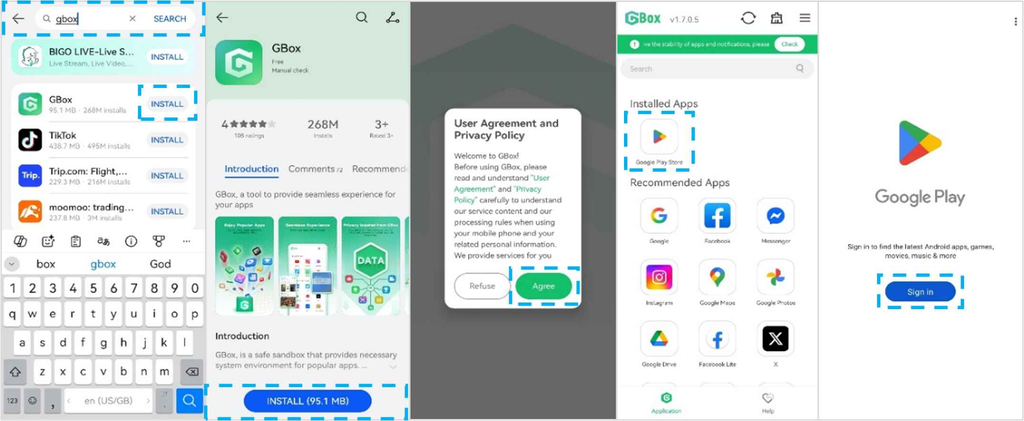
microG does not mean every app will suddenly appear in AppGallery. If an app is not available there, the guide recommends installing GBox from AppGallery.
Open GBox, sign in, and you are taken to Google Play inside GBox. You can then search for the missing app and install it. Netflix is the example used in the original Huawei instructions.
Do not mix up microG and GBox
Their jobs are different. microG supports Google sign-in and background services for apps installed through the Huawei flow. GBox acts as the gateway used when you need access to Google apps through Google Play inside GBox.
Keeping that distinction in mind makes troubleshooting easier. If YouTube is installed but cannot sign in, microG matters. If the app is not available in AppGallery at all, GBox is the next step.
A quick sign-in check
After the account is connected, close YouTube and open it again. The purpose is to confirm that the sign-in survives a normal reopen and that the app can continue using the background services provided by microG. If it opens normally, leave the microG components in place and continue with the rest of the setup.
When adding more Google apps, follow the same pattern: install from AppGallery when available, allow the requested supporting services, and test the account before moving on. This keeps the sign-in flow consistent.
Keep updates simple
AppGallery handles updates from the Me > Update section. If a third-party-source update prompt appears, tap Update. Apps downloaded from GBox are updated automatically in batches.
The huawei google play store setup therefore works best when you leave its supporting pieces alone. Install the Google app, allow microG to handle sign-in, use GBox only when needed, and keep all three components installed.